1、使用df查看文件系统的容量:df -h (h表示可读性,如1PiB=1024TiB,1TiB=1024GiB,1GiB=1024MiB)
这里说明下,现在标准用法是Tib是二进制, TB是十进制,奸商们是用TB,所以64G看起来就是59G左右。
[test_pkuhpc@login12 2019test]$ df -h

第一行显示各个列名,Filesystem 文件系统 Size 总大小 Used已使用 Avail可用 Use% 百分比 Mounted on挂载点
红色下划线为大型文件系统,gpfs1/2、lustre1/2/3
绿色为NFS文件系统
蓝色为内存划出的虚拟硬盘
北京大学北极星集群内各个文件系统挂载信息:
分区名
| 文件系统
|
debug
| lustre1/2/3
gpfs1/2
|
debug_gpu
| lustre1/2/3
gpfs1/2
|
cn_nl
| lustre2/3
|
gpu_2l
| lustre1/2/3
gpfs1/2
|
gpu_4l
| lustre1/2/3
gpfs1/2
|
gpu_8l
| lustre1/2/3
gpfs1/2
|
cn_ne
| lustre2/3
|
gpu_4e
| lustre1/2/3
gpfs1
|
cn_bio
| lustre1/2
gpfs1/2
|
cn-large
| lustre2/3
|
cn-long
| lustre1/2
gpfs1/2
|
cn-short
| lustre1/2/3
|
fat4way
| lustre1/2
gpfs1/2
|
fat8way
| lustre1/2
gpfs1/2
|
gpu
| lustre1/2/3
gpfs1/2
|
2、使用df查看文件系统大小:df -i(方便读的话使用df -ih)
[test_pkuhpc@login12 2019test]$ df -i
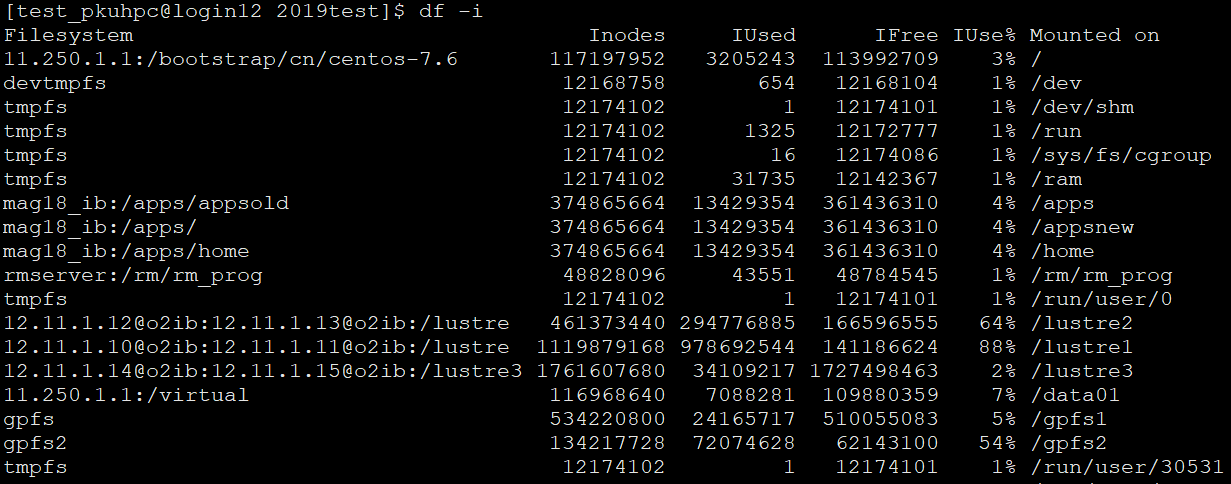
Filesystem Inodes(总文件数) IUsed(已经用的文件数) IFree(可用文件数) IUse%(已使用文件数) Mounted on
3、使用df -T 查看文件系统类型
[test_pkuhpc@login12 2019test]$ df -T
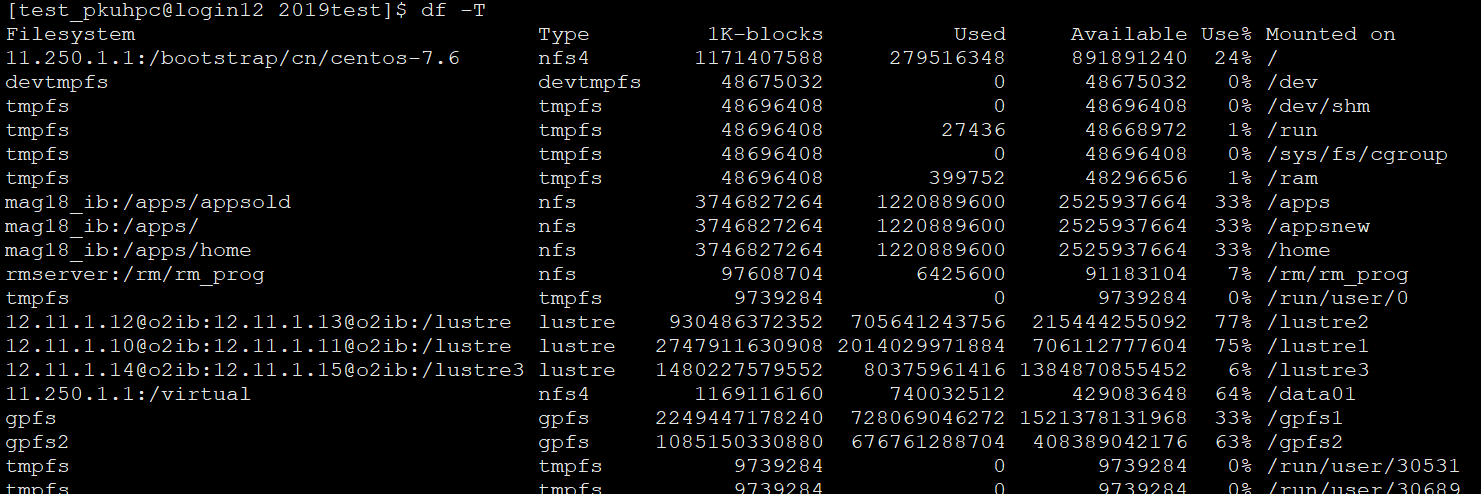
Filesystem Type (文件类型) 1K-blocks Used Available Use% Mounted on
block 是块,这个是系统文件系统的最小分配单位,注意是系统的,不是硬件的。1K-blocks是1024字节,但是对大型文件系统1K-blocks是不够的。有4K,32K 。。。。
下面是查看内存页的大小:
[test_pkuhpc@login12 2019test]$ getconf PAGE_SIZE
4096---4K
root可用用/sbin/tune2fs -l /dev/sda2 |grep "Block size" 或者 dumpe2fs /dev/sda5|more去查看文件系统块大小,但是因为登录节点都是非本地系统,所以查看不到。